






Our Step-by-Step IPTV Setup Guide Helps You Install IPTV on Any Device
Welcome to our IPTV setup guide — your trusted, step-by-step resource for setting up and installing IPTV on any device in minutes.
LG & SAMSUNG SMART TV (Tizen OS, Webos & Hisense)
ANDROID DEVICES Android TV, Android Phone & Android Box
AMAZON FIRESTICK
WINDOWS & MAC
IOS & Apple TV
Step-by-Step Setup Guide for Every IPTV Player
Click a player to jump to its setup guide. Each guide explains which devices the app runs on, how to log in with your IPTV-Point details, and the small settings that make the biggest difference. Menu names can differ slightly between app versions, but the steps stay the same.

IPTV Smarters Pro Setup Guide
IPTV Smarters Pro is one of the most popular IPTV players and the easiest to start with. It separates live TV, movies and series into clear menus and loads the TV guide automatically when you log in with Xtream Codes.
- Install IPTV Smarters Pro from your device's official app store and open it.
- Accept the terms, then choose Login with Xtream Codes API.
- Enter any name (for example "IPTV-Point"), then your username, password and server URL exactly as we sent them.
- Tap Add User and wait while channels, movies and series load — this takes about a minute the first time.
- Open Live TV, pick a category and start watching. Use Install EPG if the TV guide does not appear.
Tip from this setup guide: copy and paste your server URL instead of typing it — one wrong character causes an "invalid login" error.

TiviMate Setup Guide
TiviMate is a favorite on Android TV and Firestick because it looks like a classic cable TV guide. It is fast, very stable and perfect for watching live channels on the big screen.
- Install TiviMate IPTV Player from the Google Play Store or the store on your device, then open it.
- Select Add playlist and choose Xtream Codes.
- Enter the server address, username and password from your IPTV-Point email or WhatsApp message, then press Next.
- Give the playlist a name, keep the TV guide option enabled and press Done.
- Wait for the channel list and EPG to load, then use the left menu to browse categories.
Some advanced TiviMate features, like recording and multiple playlists, require the app's own premium upgrade from its developer. Live TV works without it.

SET IPTV Setup Guide
SET IPTV is built for Smart TVs. Instead of typing a long link with the remote, you link the app to your playlist using the MAC address shown on your TV screen.
- Open your TV's app store (Samsung Smart Hub or LG Content Store), install SET IPTV and open it.
- Write down the MAC address displayed on the screen.
- Send us the MAC address on WhatsApp — our team adds your IPTV-Point playlist to it for you.
- Restart the app on your TV. Your channel list now loads automatically.
- Use the menu to switch between channel groups and open the TV guide.
After a free trial period, SET IPTV asks for a one-time activation paid to the app's developer. This is separate from your IPTV-Point subscription.

Flix IPTV Setup Guide
Flix IPTV has a modern, Netflix-style interface that works very well on Smart TVs. Like other TV players, it connects to your playlist through the device's MAC address.
- Install Flix IPTV from your TV's app store and open it.
- Go to Settings → User Account and note the MAC address.
- Send the MAC address to our team on WhatsApp, and we connect your IPTV-Point playlist.
- Close and reopen Flix IPTV so the playlist loads.
- Browse Live TV, Movies and Series from the home screen.
Flix IPTV also needs a one-time activation from its developer after the trial period ends.

BOB Player Setup Guide
BOB Player is a simple, lightweight player for Smart TVs and mobile devices. It uses your device's MAC address and device key to load your playlist.
- Install BOB Player from your TV or phone app store and open it.
- Note the MAC address and device key shown on the screen.
- Send both to our team on WhatsApp, and we add your IPTV-Point playlist.
- Restart BOB Player and select your playlist from the list.
- Start watching and add your favorite channels to Favorites for quick access.
Keep your MAC address and device key private — they are linked to your playlist.

Perfect Player Setup Guide
Perfect Player is a free, fast player with a clean TV-guide layout. It works with your M3U playlist link and an EPG link.
- Install Perfect Player from the Google Play Store and open it.
- Open Settings (the gear icon) and go to General.
- In Playlist, paste the M3U link we sent you. In EPG, paste the EPG link.
- Press OK and go back. The app downloads your channels and TV guide.
- Use the left and right arrows to switch groups, and press OK on a channel to play it.
If channels stutter, open Settings → Player and try switching the decoder between hardware and software.

Kodi Setup Guide (PVR IPTV Simple Client)
Kodi is a free, open-source media center. It plays IPTV through the official PVR IPTV Simple Client add-on, which reads your M3U playlist and TV guide.
- Install Kodi from the official website kodi.tv or your device's app store.
- Open Add-ons → My add-ons → PVR clients → PVR IPTV Simple Client, then select Install or Enable.
- Choose Configure, set the location to Remote path (Internet address) and paste your M3U link.
- In the EPG tab, paste the EPG link, then press OK.
- Restart Kodi and open TV from the main menu to see your channels.
Only use official Kodi add-ons. Third-party add-ons are not needed for your IPTV-Point playlist.

iPlayTV Setup Guide (Apple TV)
iPlayTV is a polished IPTV player for Apple TV with a smooth interface and a full TV guide. It loads your playlist from an M3U link.
- Download iPlayTV from the App Store on your Apple TV.
- Open the app and choose to add a playlist.
- Enter your M3U link (and the EPG link if asked). Many users enter it from their iPhone to avoid typing with the remote.
- Save the playlist and wait for channels and the TV guide to load.
- Select a channel group and start watching in HD or 4K.
iPlayTV is a paid app on the App Store. You can also use IPTV Smarters on Apple devices if you prefer a free player.
Stream Smarter, Live Better — IPTV-Point Delivers Unlimited Entertainment
Access 35,000+ live TV channels and 140,000+ movies and series in HD and 4K, on every device you own. Follow this setup guide and start watching in minutes.
Explore IPTV like never before with our exclusive IPTV setup guide — your go-to resource for every device. Browse our subscription plans, read the FAQ, or learn more about IPTV technology.
Top 10 IPTV Apps & Compatible Devices in 2026
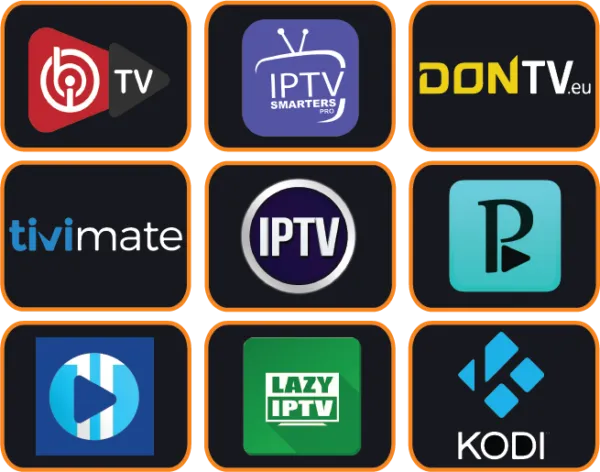
The app you use matters as much as the service itself. A good IPTV player loads channels fast, shows a clear TV guide, plays 4K smoothly and makes movies and series easy to browse. Every app below works with your IPTV-Point subscription through Xtream Codes login or an M3U playlist.
Not sure which one fits your screen? Find your device in the compatibility list further down, install the recommended app, then follow the matching steps in this setup guide. Our team installs it with you for free on WhatsApp if you prefer.
- 10 appsRecommended and supported
- 9+ devicesTVs, sticks, phones & PCs
- Xtream & M3UBoth login types work
- Free helpInstallation assistance 24/7
The 10 Best IPTV Apps, Ranked
This setup guide ranks each app by ease of use, device support, picture quality and features. Download apps only from your device's official app store or the developer's official website.

IPTV Smarters Pro
Best all-round IPTV appThe most popular IPTV player and the easiest place to start. Live TV, movies and series sit in separate sections, the TV guide loads automatically with Xtream Codes, and the same app runs on almost every device you own.

TiviMate
Best for Firestick & Android TVA true TV-style experience with a full-screen channel grid and very fast zapping. The free version plays your channels; Premium adds multiple playlists, recording, catch-up and favourites management, which is why sports fans love it.
IBO Player Pro
Best for Samsung & LG Smart TVsA clean, modern player available directly in the Samsung and LG TV stores, so you do not need any extra box or a complicated setup guide. You add your playlist on the developer's website using the device ID shown in the app, and it is ready in minutes.

Flix IPTV
Best interface on Smart TVsStylish layout, multiple themes, subtitles and multi-language audio support. A strong choice for families who watch a lot of movies and series on the big screen.

SET IPTV
Reliable classic for Smart TVsOne of the longest-running IPTV apps for Samsung and LG TVs. You upload your M3U playlist on the SET IPTV website using your TV's MAC address. Simple, light and stable on older TV models too.

BOB Player
Best for TV + phone togetherWorks on Smart TVs and mobile, so you can use the same player on the living-room TV and your phone. Clear menus, an EPG and good support for live TV, movies and series.

iPlayTV
Best for Apple TVBuilt natively for Apple devices, with a smooth tvOS interface, a TV guide and iCloud sync between Apple TV, iPhone and iPad. The top pick if your home runs on Apple.
OTT Navigator
Best feature-rich Android appA powerful player with catch-up, multiple playlists, a detailed EPG and lots of layout options. Ideal for users who like to customise everything on an Android box or Firestick.

Perfect Player
Best lightweight playerFast and simple, with a classic set-top-box look. It runs well even on low-power Android boxes and older phones, which makes it a smart fallback app.

Kodi
Best for advanced users & PCsThe free, open-source media centre. With the official PVR IPTV Simple Client add-on it plays your M3U playlist with a full TV guide on Windows, Mac, Linux, Android and Firestick.
IPTV Compatible Devices: Setup Guide by Device
IPTV-Point works on every popular device. This setup guide lists the app we recommend first for each one, plus a good alternative.
Amazon Firestick & Fire TV
TiviMate or IPTV Smarters Pro. Install with the Downloader app if it is not in the Amazon store in your region, as shown in the Firestick setup guide.
Samsung Smart TV
IBO Player Pro, Flix IPTV or SET IPTV, all from the Samsung app store (Tizen).
LG Smart TV
IBO Player Pro, Flix IPTV or BOB Player from the LG Content Store (webOS).
Android TV & TV boxes
TiviMate, OTT Navigator or Perfect Player. Works on Google TV, Nvidia Shield, Mi Box and more.
Apple TV
iPlayTV for the best tvOS experience, or IPTV Smarters Pro.
iPhone & iPad
IPTV Smarters Pro or iPlayTV from the App Store. Great for watching on the go.
Android phones & tablets
IPTV Smarters Pro or OTT Navigator from Google Play.
Windows & Mac
IPTV Smarters Pro or Kodi with PVR IPTV Simple Client. VLC can also open an M3U link.
MAG & Enigma2
No app needed: MAG boxes use a portal URL and Enigma2 receivers use an M3U line. Our team sends the right details and a matching setup guide.
Setup Guide Tips: How to Choose the Right IPTV App
Four quick questions from our setup guide that point you to the best player in under a minute.
Start with your device
Smart TV owners should use a TV-store app like IBO Player Pro or Flix IPTV. Firestick and Android users get the best results with TiviMate.
Xtream Codes or M3U?
Xtream Codes login loads channels, movies, series and the TV guide automatically. M3U links work everywhere, including Kodi, VLC and Enigma2.
Free or one-time fee?
Several Smart TV players offer a free trial and then a small one-time activation fee paid to the app developer, not to us. Check the app's site for its current price before you follow the setup guide.
Need extra features?
Want recording, catch-up or several playlists? Choose TiviMate Premium or OTT Navigator. For simplicity, IPTV Smarters Pro is hard to beat.
Got your app? Activate your IPTV subscription now
Order on WhatsApp, receive your login in minutes and we will follow this setup guide with you, step by step.
IPTV-Point provides the IPTV subscription only. The player apps listed are made by independent developers; app names and logos belong to their owners.

Everything You Need Before, During & After Your IPTV Setup
This setup guide goes beyond the basic installation steps above. Below you will find what to prepare before you start, how to get the best picture quality on every screen, a full troubleshooting section, and the small tweaks our support team recommends every day. Follow this setup guide once and your IPTV service will run smoothly for months without you having to touch it again.
Before You Start: Your Setup Guide Checklist
Most installation problems happen before the app is even opened. Spend two minutes on this checklist and the rest of the setup guide becomes simple.
1An Active Subscription
You need your login details (username, password and server URL) or your M3U playlist link. They arrive by email or WhatsApp a few minutes after you order. If you do not have them yet, choose a package on our subscription plans page first.
2A Stable Internet Connection
For HD streams we recommend at least 15 Mbps, and 25 Mbps or more for 4K channels. A wired Ethernet cable is always more stable than Wi-Fi, especially on Smart TVs and TV boxes.
3An Updated Device
Install the latest system update on your TV, Firestick, phone or computer. Old firmware is one of the most common causes of apps closing or refusing to play channels.
4A Compatible Player App
IPTV-Point works with all popular player apps. Pick the one recommended for your device in the sections above, install it from the official app store, and keep this setup guide open next to you.
Recommended Internet Speed by Quality
Your connection speed decides the picture quality you can enjoy. Use this table from our setup guide to check what your internet can handle. You can test your speed for free on Speedtest.net.
| Stream quality | Minimum speed | Recommended speed | Best for |
|---|---|---|---|
| SD (480p) | 5 Mbps | 8 Mbps | Phones, slow connections |
| HD (720p) | 8 Mbps | 12 Mbps | Tablets, small TVs |
| Full HD (1080p) | 12 Mbps | 20 Mbps | Most Smart TVs and boxes |
| 4K / UHD | 25 Mbps | 40 Mbps+ | Large 4K TVs, sports |
If several people in your home stream at the same time, add the speeds together. A family watching two Full HD channels needs around 40 Mbps for a smooth experience.
How to Connect: M3U Link vs. Xtream Codes
Every app in this setup guide will ask you to choose a login method. Both methods give you the same channels; the difference is how the information is entered.
Xtream Codes API (recommended)
You type three details: the server URL, your username and your password. This method loads channels, movies and series into separate, well-organized categories, and it shows the TV guide (EPG) automatically. It is the method we recommend in this setup guide for most users.
M3U Playlist Link
You paste one long link that contains all of your channels. It is useful for apps or devices that do not support Xtream Codes. If you use an M3U link, add the EPG link we send you so the program guide appears next to each channel.
Tip: copy and paste your details whenever possible instead of typing them. One wrong letter in the server URL or password is enough to show an "invalid login" error.
Setup Guide Tips for the Best Picture Quality
Once your channels are loading, these settings make a visible difference. Our support team applies them in almost every setup guide session with new customers.
- Use a wired connection for your TV or box. Ethernet removes most buffering caused by Wi-Fi interference.
- Use the 5 GHz Wi-Fi band if a cable is not possible. It is faster and less crowded than 2.4 GHz.
- Change the video player inside the app settings. Most apps offer a hardware decoder and a software decoder; if a channel stutters, switch between them.
- Increase the buffer size to medium or large on slower connections. Channels start one second later but play without interruption.
- Restart your router once a week. It clears memory and keeps your connection fast.
- Close background apps on Firestick and Android boxes to free memory for streaming.
- Refresh your playlist once a week so new channels, movies and series appear in your list.
Troubleshooting: Quick Fixes From Our Setup Guide
If something does not work as expected, find your problem below. Each fix takes less than five minutes, and most issues are solved without contacting support.
Channels are buffering or freezing
First test your internet speed and compare it with the table above. Restart your router and your device, then switch the app to a different video player (hardware or software decoder). If only one channel freezes, try the backup version of that channel, usually marked with a different quality label. Our Anti-Freeze technology handles most network drops automatically.
"Invalid login" or "account not found" error
Check the server URL, username and password carefully — they are case sensitive and must not contain extra spaces. Make sure the URL starts with http:// and includes the port number if one was provided. If the error continues, your subscription may have expired or reached its device limit.
Black screen with sound, or sound without picture
This is almost always a decoder issue. Open the app settings, change the video player or decoder, and play the channel again. Updating the app to the latest version also fixes most audio and video codec problems.
The TV guide (EPG) is empty
Open the app settings and choose "Update EPG" or "Refresh guide". If you connected with an M3U link, add the EPG link from your welcome email. The guide can take a few minutes to load the first time.
Movies or series do not appear
Video-on-demand categories load separately from live channels. Refresh the playlist from the app menu and wait until loading completes. If you use an M3U link, switching to Xtream Codes usually shows movies and series in a cleaner layout.
The app closes or crashes
Clear the app cache (Settings → Apps → your player → Clear cache), then restart the device. If the problem continues, uninstall and reinstall the app from the official store, then log in again using the steps in this setup guide.
Using IPTV on Multiple Devices
Each IPTV-Point subscription includes a set number of connections: 1, 2 or 3 devices depending on the plan you choose. You can install the app on as many screens as you like, but only the number of devices included in your plan can stream at the same time. If you try to watch on more screens than your plan allows, the extra screen will stop playing.
Families who watch in the living room and the bedroom at the same time usually choose the 2 or 3 device plan. You can compare every option on the subscription plans page and upgrade at any time.
Setup Guide Summary: Which App for Which Device?
Not sure where to start? This quick summary of our setup guide shows the easiest option for each type of screen, so you can jump straight to the right installation steps above.
| Device | Where to get the app | Login method | Setup time |
|---|---|---|---|
| Samsung & LG Smart TV | Samsung Smart Hub / LG Content Store | Xtream Codes or M3U | About 5 minutes |
| Android TV, phone & box | Google Play Store | Xtream Codes | About 3 minutes |
| Amazon Firestick | Amazon Appstore | Xtream Codes | About 5 minutes |
| iPhone, iPad & Apple TV | Apple App Store | Xtream Codes or M3U | About 3 minutes |
| Windows & Mac | Official app website or Microsoft Store | M3U or Xtream Codes | About 4 minutes |
Extra Features Worth Setting Up
Once the basic installation is done, take a few more minutes to unlock the features that make daily viewing easier. This part of the setup guide is optional, but most customers tell us they use these features every day.
Favorites List
Long-press any channel and add it to your favorites. With 35,000+ channels available, a short favorites list lets you reach the channels you actually watch in one click instead of scrolling through categories.
Catch-Up & Replay
Channels marked with a catch-up icon let you watch programs that already aired. Open the TV guide, go back in time, and select the show you missed. Availability depends on the channel.
Parental Control
Most player apps let you lock adult or selected categories with a PIN code. Set it up once from the app settings and children will only see the content you allow.
Multi-Screen View
Some apps can show two to four channels on one screen — perfect for following several matches at the same time. Remember that each stream uses bandwidth, so check the speed table in this setup guide first.
Bookmark this setup guide so you can come back to it whenever you add a new device, change your router, or simply want to improve your viewing experience. We update this setup guide regularly with the newest apps and tips for 2026.
Keep Your IPTV Setup Safe and Private
- Download player apps only from official stores such as Google Play, the Apple App Store, the Amazon Appstore or your TV's own store.
- Never share your login details publicly. Your account is personal and sharing it can block your connection.
- Keep your apps and devices updated to receive the latest security fixes.
- Contact us directly through our website for any help — our team will never ask for your bank card details by message.
Still Need Help After This Setup Guide?
Our support team is available 24/7 and can guide you step by step on any device. Most setups are completed in under 5 minutes. Check our FAQ or reach out directly.
Frequently Asked Questions
Discover why IPTV-Point is the #1 choice. Enjoy an ultra-stable IPTV service with a free trial, 4K streaming and 24/7 support.
IPTV stands for Internet Protocol Television, which is a digital television broadcasting protocol. Unlike traditional terrestrial, satellite, or cable TV broadcasts, IPTV delivers television content through internet networks. This modern technology allows you to stream your favorite channels and content directly over your internet connection.
To subscribe to IPTV services, you can purchase a subscription package directly from iptv-point.com or through an authorized reseller. Once you complete your subscription, you'll receive login credentials that you can use to access the IPTV service on your preferred device. The setup process is simple and straightforward.
IPTV works by transmitting digital television signals over the internet, which viewers can receive on internet-enabled devices such as smartphones, tablets, smart TVs, and computers. To ensure smooth streaming of content, IPTV requires a stable and fast internet connection. We recommend a minimum connection speed for optimal viewing experience.
IPTV offers numerous advantages including:
- Access to an extensive selection of channels and content, including live TV, video-on-demand, and TV series
- Ability to watch content on multiple types of devices
- Superior picture and sound quality compared to traditional television formats
- Flexibility to watch what you want, when you want
- No need for traditional cable or satellite equipment
- Cost-effective entertainment solution
To use IPTV, you need an internet-connected device that supports IPTV services, such as a smartphone, tablet, smart TV, or computer. Additionally, you may need a compatible IPTV box or media player to use the IPTV service on your television. At iptv-point.com, we provide setup guides for all compatible devices to make your experience seamless.
We offer a variety of flexible subscription plans to meet different viewing needs and budgets. Our packages include premium features such as 4K streaming quality and extensive VOD (Video on Demand) libraries. To explore all available options and find the perfect plan for you, check out our IPTV-Point Deals – Best Subscription Plans with 4K & VOD page at iptv-point.com. We regularly offer special promotions and discounts, so you can enjoy premium entertainment at competitive prices. Whether you need a monthly, quarterly, or annual subscription, we have options that deliver exceptional value.
IPTV gives you access to a wide variety of local and international television channels, including sports, news, entertainment, movies, and much more. The available channels and packages may vary depending on your chosen subscription plan. Visit iptv-point.com to explore our comprehensive channel list and find the package that best suits your viewing preferences.
Please note that while one subscription can be installed on multiple devices, you can only watch on one device at a time. This ensures optimal streaming quality and service performance for all our users.
Absolutely! IPTV usage is completely safe. It's simply a service that allows you to stream your favorite cable channels over the internet without requiring a traditional cable connection. At iptv-point.com, we operate fully legally, and all channels available on our website are licensed and safe to stream. We prioritize your security and privacy.
We currently accept PayPal, credit card payments, cryptocurrency and bank transfer payments for your convenience. All transactions are processed securely to protect your financial information.
We don't lock our customers into long-term commitments, and you can cancel our service at any time. When you cancel, you will no longer be charged, and your service will automatically end at the conclusion of your current subscription period. No cancellation fees apply.
Setting up IPTV on your device is quick and easy! We've created a comprehensive IPTV-Point Setup Guide for 2026 – Fast & Easy Installation Tutorial that walks you through the entire installation process step-by-step. Whether you're using a smart TV, Android device, iOS device, or IPTV box, our detailed guide covers everything you need. The setup typically takes just 5-10 minutes, and you'll be enjoying your favorite channels in no time. Visit iptv-point.com to access our installation tutorials and video guides.
Contact Us for the Latest IPTV News and Offers
Reach out to our support team for any questions or reseller information.
